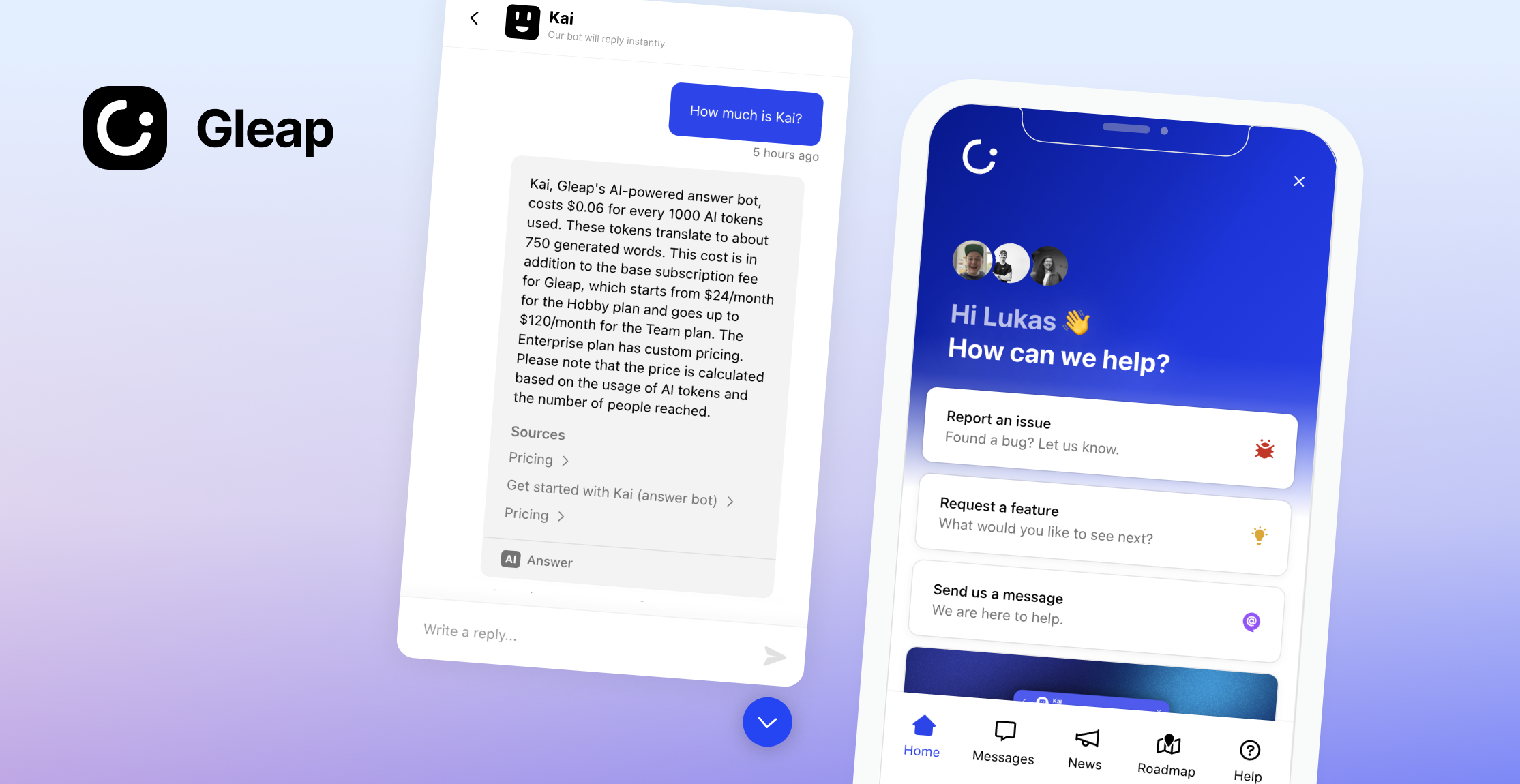
Add AI-native customer support, live chat, in-app bug reporting, a help center and surveys to websites and web apps using JavaScript or TypeScript with Gleap. Gleap is an Intercom alternative for software teams that connects customer conversations and feedback with product development.
SDK documentation · Website · Plans and pricing
Checkout our documentation for full reference: JavaScript SDK setup, code snippet and user identity.
1.) Create a Gleap account and project. See the current plans and trial terms.
2.) Include the Gleap JS SDK within your apps.
Install the Gleap package via npm or yarn.
npm install gleap --save
Import the Gleap package.
import Gleap from 'gleap';
TypeScript projects: the package types the <gleap-*> elements for both React 18 and React 19. This requires @types/react 18.2.6 or newer (17.0.51+ / 16.14.41+ on older React lines). If you see errors like Type '"span"' is not assignable to type 'ElementType' after installing, run npm i -D @types/react@latest.
Add the following code to initialize the Gleap JavaScript SDK. Replace "YOUR_PROJECT_ID" with your Project ID from the Gleap dashboard (Settings → Project → General). The Project ID was called "SDK key" or "API key" before; the value is the same and existing keys keep working.
Gleap.initialize("YOUR_PROJECT_ID");
// or: Gleap.initialize({ projectId: "YOUR_PROJECT_ID" });
Projects hosted in the US data region select it before initializing. The default region is eu. See docs/custom-widget-domains.md for the host table and custom domains.
Gleap.setRegion("us");
Gleap.initialize("YOUR_PROJECT_ID");
Your backend signs an HS256 JWT with an identity key from Settings → Security → Customer identity → Identity keys (put the key id in the kid header; the secret stays on your server). userId is required. Optional claims: email, name, company ({ id, name }), plan, and provider ids such as stripeCustomerId. Set exp to at most one hour. The token is the whole identify: every claim lands on the contact as signed data that the browser cannot change. Call Gleap.setUserJwt(token) after login and on every page load of a logged-in user; no separate identify call is needed. See Customer identity and JavaScript SDK user identity.
// Your backend (Node, jsonwebtoken). Use an identity key from Settings → Security → Customer identity → Identity keys.
const token = jwt.sign(
  { userId, email, stripeCustomerId, exp: Math.floor(Date.now() / 1000) + 60 * 60 },
  SECRET,
  { algorithm: 'HS256', keyid: KEY_ID }
);
// Your app (token from your backend)
Gleap.setUserJwt(token);
The token is kept in memory only. To renew it when it expires, and to sign the session again after a page reload when the grant cookie is missing, give the SDK a function that fetches a fresh one from your backend:
Gleap.setUserJwtProvider(() => fetch('/api/gleap-token').then((res) => res.text()));
Per-user tokens for your API tools (used as {{session.authTokens.<name>}}) are stored on the signed contact; null removes one:
Gleap.setAuthTokens({ backend: userAccessToken });
A valid token signs the session: the server answers with a grant that the SDK sends as the Gleap-Grant header on every request and hands to the messenger. It is kept in memory and in the gleap-grant-<YOUR_PROJECT_ID> cookie on your top-level domain (unless Gleap.setUseCookies(false); on an IP address such as 127.0.0.1 it is a host-only cookie), so a page reload and a help center on a subdomain stay signed until it expires. The project's session max age (Settings > Security, 7 days by default) sets its lifetime; shorten it per app with sessionDuration in milliseconds:
Gleap.initialize("YOUR_PROJECT_ID", { sessionDuration: 24 * 60 * 60 * 1000 });
or later with Gleap.setSessionDuration(24 * 60 * 60 * 1000) (the same call as in the mobile SDKs).
When the grant runs out and no fresh token arrives (no setUserJwt on this page load, and the JWT provider returns null or is not set), the signed session ends: the user continues as a visitor with no conversation history, as in Intercom's web Messenger. A token passed later signs them in again, and what they did as a visitor on this device is merged into their contact. If the messenger is open when the grant runs out, the session ends once it is closed, at the latest an hour later. A user identified with Gleap.identify(userId, data) and no token or hash was never signed and stays identified (only their last 14 days of conversations are shown in Signed mode).
Gleap.setUserJwt never rejects: a refused token (token_expired, token_invalid, signature_required) or a network error is logged to the console.
Gleap.getIdentity() returns { gleapId, gleapHash, grant, ... } for handing the signed session to your own help center or portal. A token for another user than the current session's makes the SDK start a fresh session and identify again (the server merges it into the right contact).
Gleap.clearIdentity() on logout clears the contact, the token, the grant (and its cookie) and the auth tokens. The JWT provider stays set.
Older integrations that pass a user hash to Gleap.identify(userId, data, userHash) keep working while "Accept legacy user hash" is on for the project; see Upgrade to identity tokens to move them to Gleap.setUserJwt. Gleap.identify(userId, data) without a hash creates an unsigned contact.
The widget can match your app's dark/light mode. Enable "Adapt to dark / light mode" in the dashboard (Widget → Look & feel) and set the dark colors there: header colors, UI color and background. In dark mode the widget uses these dark colors, plus the dark logo, header image and composer glow set in the dashboard; without dark colors it keeps its normal colors. Override the scheme at runtime, e.g. from your own theme toggle (only takes effect while "Adapt to dark / light mode" is enabled in the dashboard; until you call it, the dashboard setting applies):
Gleap.setColorScheme("auto"); // follows your app; or "light" / "dark" to force a mode
Congrats, you are now all set! Report your first bug by using the feedback button.
We are here to help! hello@gleap.io
- Set
versioninpackage.jsonand add a## X.Y.Zsection toCHANGELOG.md. - Merge to
master. Cloudflare Workers Builds deploys the CDN build (sdk.gleap.io) on every push tomaster. git tag X.Y.Z && git push origin X.Y.Z(plain version, nov).
The Release workflow checks that the tag matches package.json, runs the tests, publishes gleap to npm with trusted publishing (GitHub OIDC, no token; prerelease tags go to the next dist-tag) and creates the GitHub release from the CHANGELOG section. One-time setup: npm trust github gleap --repo GleapSDK/JavaScript-SDK --file release.yml --allow-publish.